Build your LinkedIn profile from scratch
Your custom URL and the settings that matter
linkedin.com/in/your-name, who can see what, and the notifications to switch off.
Your custom URL
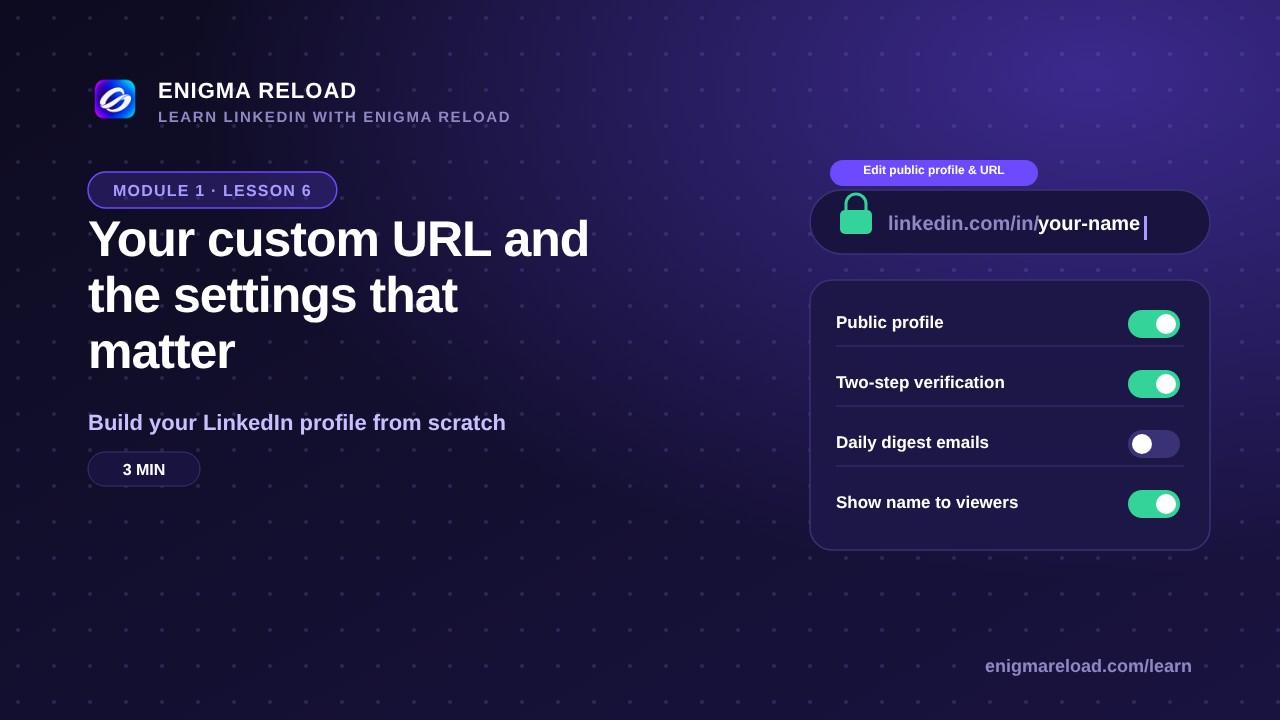
On your profile, look at the right column and click Edit public profile & URL. On the next page, click the pencil next to your URL. The rules: 3 to 100 characters, letters and numbers only, no spaces or symbols. Use your name the way it is written on your CV (firstname-lastname). If that is taken, add a middle initial or a short number. Click Save.
You can change it later, but every link you have already shared will break, so pick it once. Then put it to work: at the top of your CV next to your email, in your email signature, and in any bio where people can click.
Public profile visibility
On the same page, make sure "Your profile's public visibility" is On, and show everything below it: headline, photo, About, experience and education. Google and signed-out recruiters only see what you make public, and they are the people you most want to find you.
Settings: Visibility
Profile viewing options: Your name and headline. Private mode hides you, and on a free account it also means you cannot see who viewed you.
Who can see or download your email address: your connections. Who can see your connections: your choice; Connections is fine. Open to work: Recruiters only, as set in lesson 2.
Account preferences, security and notifications
In Account preferences, check that your name matches your CV, keep your real city as your location (recruiters filter by it), and set your language. In Sign in & security, turn on two-step verification with an authenticator app or SMS. It takes one minute and is the single best protection for your account.
Notifications recap from lesson 2: messages and invitations on, digests off.
Quick check: paste your custom URL into a private or incognito window. You are signed out there, so what you see is exactly what a stranger sees. If something is missing, go back to Edit public profile & URL and switch it on.