
Build your LinkedIn profile from scratch
Your photo and banner
What to upload, the sizes that fit, and how to do it on a phone and a laptop.
Why the photo matters
Your photo is the first thing anyone sees on your profile, before your name and before a single word you have written. LinkedIn says a profile photo can get you 21 times more profile views and 9 times more connection requests. A profile without one looks unfinished, and most people, and most recruiters, move on.
What a good photo looks like
Your face fills about 60% of the frame, from the top of your head to just below your shoulders. You look at the camera. The light is soft: stand facing a window in the daytime. The background is plain. You dress the way you would for your work, with a natural smile. The photo is recent, within the last two years.
No group photos, no sunglasses, no filters. A phone photo is fine: ask a friend to take a few, or set the timer and lean the phone against something. Take twenty and keep the best one.
How to upload it
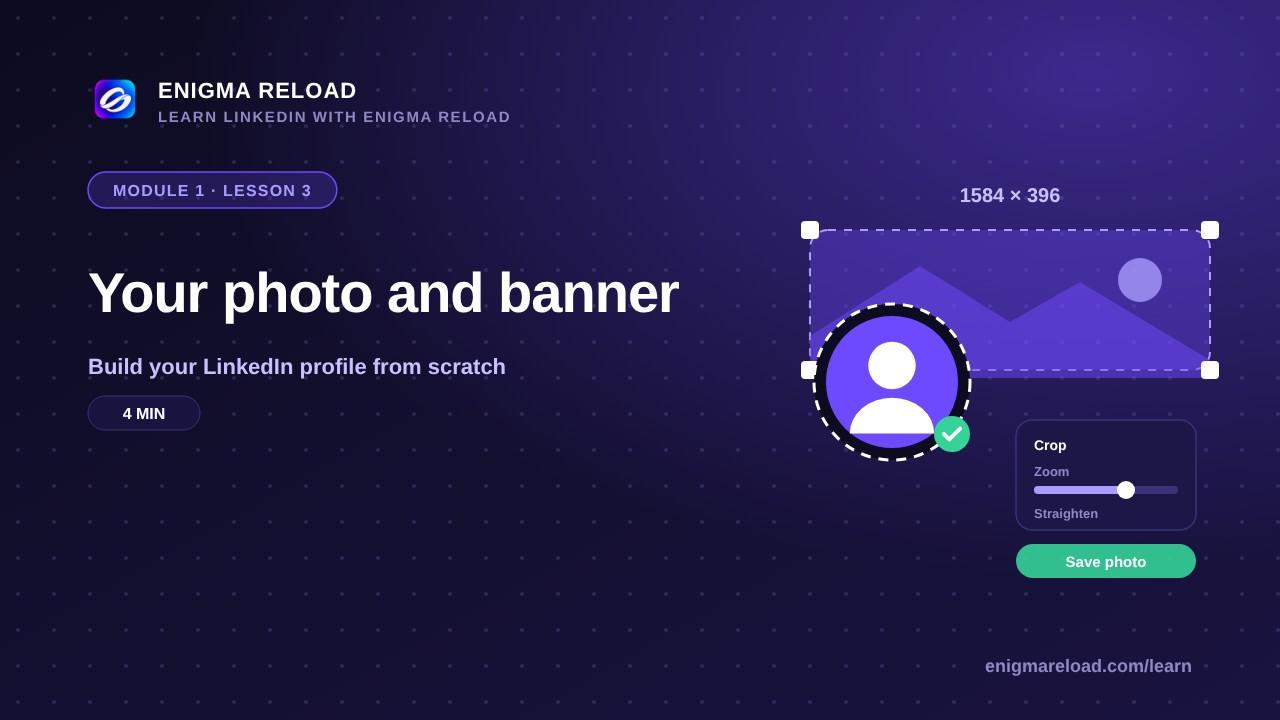
On a laptop: click Me, then View profile. Click the camera icon or Add photo, choose Upload photo and pick the file. In the crop window, drag the zoom slider until your face fills the circle and use Straighten if it is tilted. The Frames tab holds the Open to work frame; leave it off unless you chose it in the last lesson. Click Apply, then Save photo.
On the phone: open the LinkedIn app and tap your profile picture at the top left. Tap it again on your profile page, then Add photo. Choose Take photo or Choose from gallery, pinch to zoom, and tap Save.
The banner, and who can see your photo
The banner is the wide image behind your photo. The size is 1584 × 396 pixels (4:1). On a laptop your photo covers the bottom left corner, so keep text and faces out of that area. Ideas: a photo of your work or your city, a plain color with one line that says what you do, or your company's banner. Canva is free and has a ready-made LinkedIn banner size. To upload it, click the pencil icon on the banner, then Upload, position it, and Save.
Last check: click Me, then Settings, then Visibility, and open Profile photo. Choose Public, so Google and recruiters who are not connected to you can see your face next to your name.