
Build your LinkedIn profile from scratch
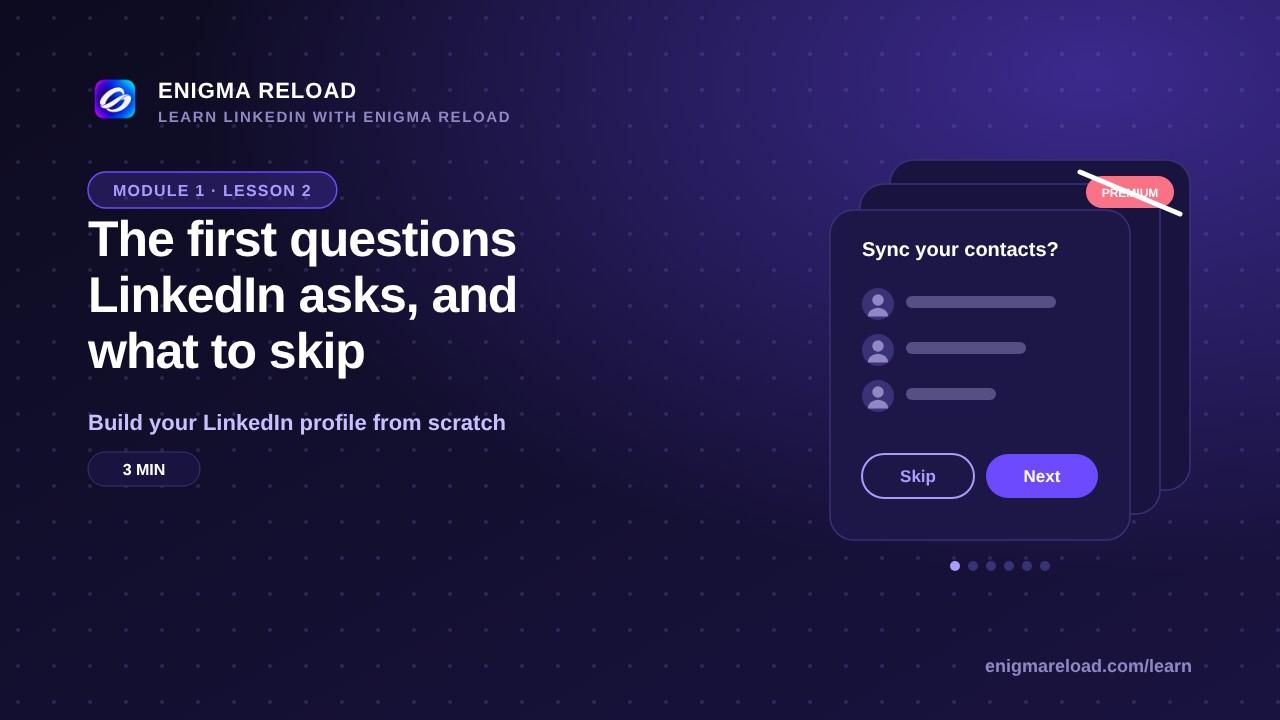
The first questions LinkedIn asks, and what to skip
Contacts, people to follow, Premium offers and notifications: what to answer now and what to leave for later.
Six screens, none required
Right after you sign up, LinkedIn walks you through a series of screens. Each one asks for something, and every one of them can be skipped. Here is what to answer now and what to leave for later.
Skip these
Contacts: LinkedIn asks to sync your email or phone address book. Click Skip. You can add people by hand once your profile is ready for them to see; there is no benefit in inviting people to an empty profile.
Premium: skip the free trial. Everything in this course works on the free account, and a trial asks for a card and charges you if you forget to cancel.
The app: optional. It is handy for replying to messages, but everything in this course can be done in the browser.
Do this one
Follow companies and people: follow 5 to 10 in your field, a few companies you would like to work with and a few people whose posts you want to read. Skip the rest. Following is not connecting: it only shapes what you see in your feed, and you can unfollow at any time.
Think before you answer
Are you looking for a new job? Saying yes switches on Open to work, which can add a green #OpenToWork frame to your photo that everyone can see, including your employer. If you are not job hunting, choose Not right now. If you are, say yes and then choose Recruiters only under "who sees you're open". Your contacts won't see it; LinkedIn takes steps to hide it from recruiters at your current company but can't guarantee it. You can change this later from the Open to section on your profile.
Notifications and email: open Settings, then Notifications. Turn off the daily digests and the news. Keep messages and connection requests on.